Show your weekly menu anywhere in your theme
November 13, 2026
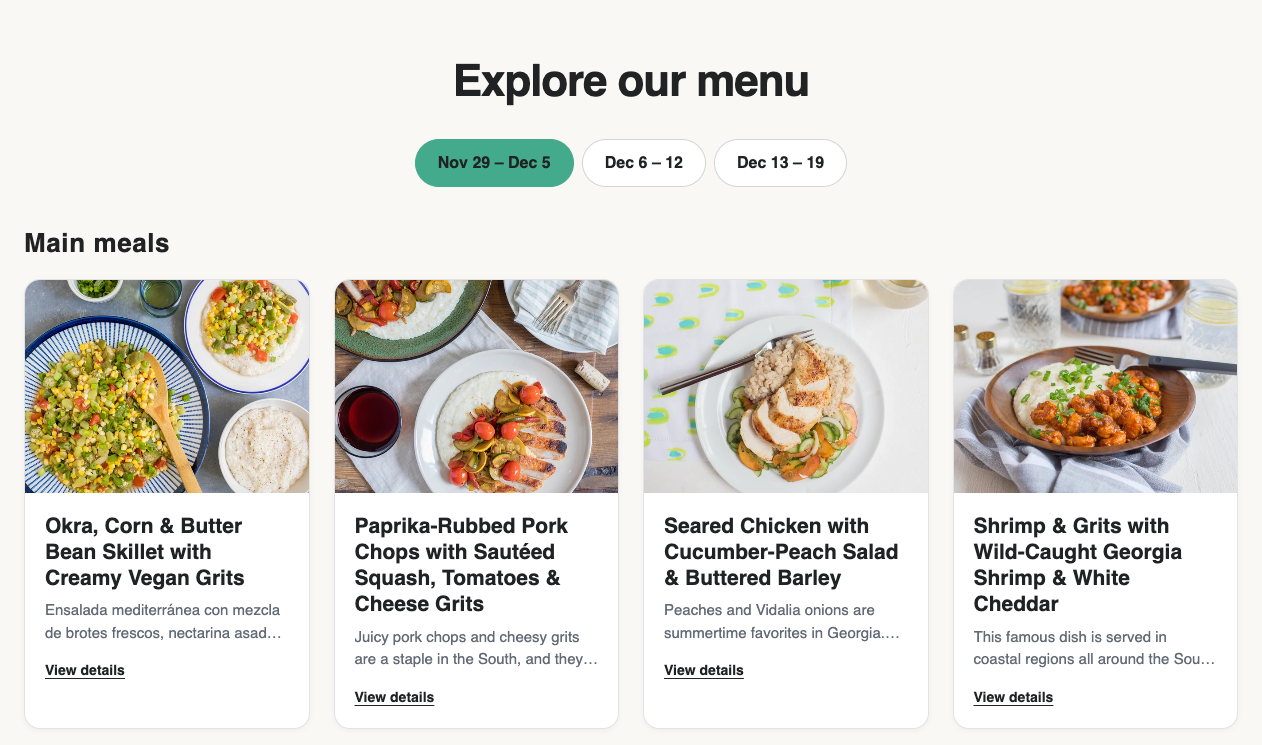
Visitors want to see what they would be eating before they commit to a plan. The Menu showcase block shows your menu where they already are, from the same menus you run in Servd.
How to add it
In Shopify, open Online Store › Themes › Customize, open the page where you want the menu, choose Add section › Apps and add Menu showcase.
Set the heading, introduction, how many weeks to show, how many meals appear before Show more, the number of columns and the colors. To add an order button, set Order button link to your meal plan product or ordering page; leave it blank to hide the button.
What visitors see
Your upcoming menus, by week, using your order cutoff. An evergreen menu shows without a week selector. Clicking a meal opens its description and photos, with nutrition and allergens if you show them on menu cards.
There is no second menu to keep up: the block reads your existing menus, rotation and sections. It is for browsing; customers choose their plan and meals in your ordering flow.
Headings, buttons and dates follow your customer languages, and dish names use your Shopify translations.
More product updates
Plan photos in Guided Start, and two plans per row on phonesStorefront · November 17, 2026Copy your menu link from Meal plansStorefront · November 16, 2026Show customers their box as they pickStorefront · November 12, 2026Ready to set this up on your store?
Servd is free to install and walks you through creating your meal plan, your first menu, and the storefront entry point.
Install Servd on ShopifyQuestions about your setup? Email us — we respond within 24 hours.